


Best Practices for Loading SOLIDWORKS Data into 3DEXPERIENCE
ByMarc Young, Managing Partner, xLM Solutions
Migrating SOLIDWORKS data to 3DEXPERIENCE can be complex – but with the right strategy, tools, and support, it doesn’t have to be painful. Get expert insights from xLM’s latest webinar.
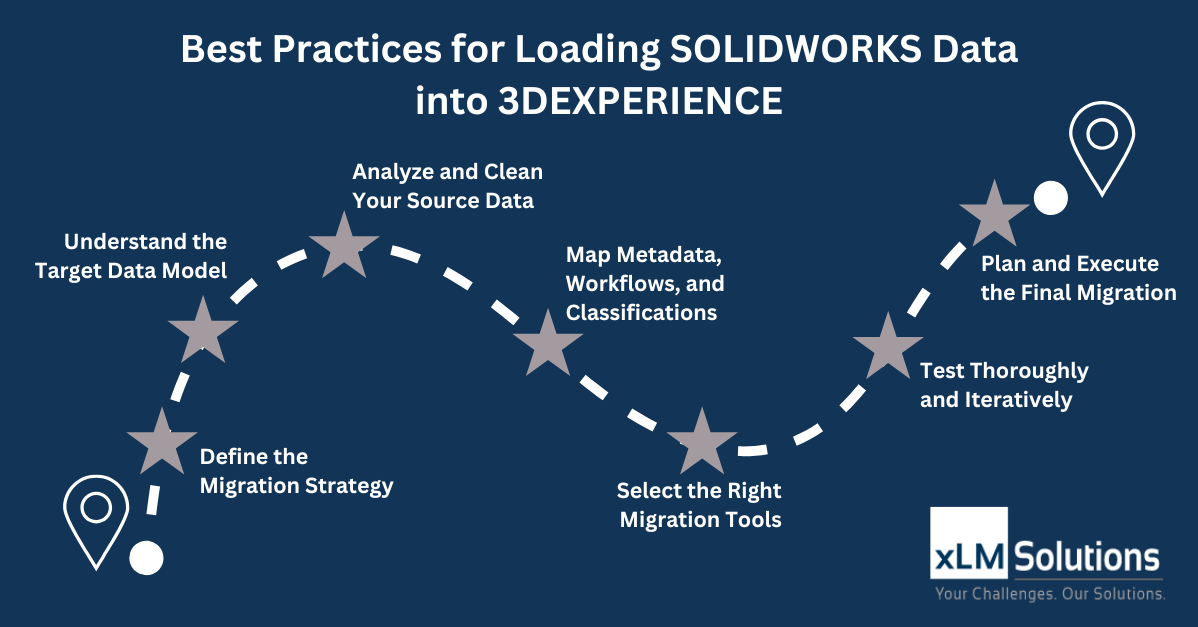
At xLM Solutions, we’ve supported companies of all sizes through complex migrations ofSOLIDWORKS data to 3DEXPERIENCE. Whether you’re moving data from legacy PDM systems or local network folders – whether on cloud or premise– the key to success is a well-thought-out strategy grounded in real-world experience. In our recent webinar, Best Practices for Loading SOLIDWORKS Data into 3DEXPERIENCE, my colleague Ilan Madjar and I shared practical insights to help SOLIDWORKS / 3DEXPERIENCE (click link to watch) admins, engineering managers, and implementation teams migrate SOLIDWORKS data right the first time. Here’s a recap of what we covered.
Why Planning Matters
Loading SOLIDWORKS data into 3DEXPERIENCE isn’t just about moving files – it’s about aligning your CAD structure with the 3DEXPERIENCE Unified Product Structure (UPS) data model. Before you start we recommend you to:- Understand how UPS works, especially the mapping of configurations to Physical Products
- Clarify why you’re migrating. What are the benefits you are looking to obtain from managing SOLIDWORKS data in 3DX such as – improving efficiency, enabling collaboration, or supporting digital transformation?
- Define the scope: all revisions vs. latest only? Released + in-work?
Preparing and Cleaning Your Data
Every migration should start with a data quality audit. You’ll want to:- Check and clean up/fix duplicate filenames and/or part numbers
- Validate revision history and ensure it conforms to your 3DEXPERIENCE patterns
- Confirm proper file references (especially for assemblies and linked parts)
- Identify missing or incorrect meta data (descriptions, owners, etc.)
Tools for Every Scenario
Depending on your environment, here are the tools we recommend: ✅ Manual or Batch Save- Best for folder-based data
- Simple to use via the SOLIDWORKS Connector
- Ideal for large on-premise migrations
- Supports full revision history, complex mappings, and orchestration
- Purpose-built for cloud migrations
- Supports delta loads, full history, and advanced mappings
- For non-Dassault systems like Teamcenter or Windchill
- Allows you to transform and import data via STEP X or XPDM XML formats
Testing and Going Live
In our opinion, testing is the most important step which gets overlooked in many migrations. No migration is perfect the first time. You’ll need multiple test cycles – each with a structured test plan – to:- Validate revisions/versions, file references, and meta data
- Simulate real-world workflows scenarios, create new revisions of data, revise data via SOLIDWORKS Connector, and put such data through change actions
- Test with all size assemblies, make sure no performance issues on large assemblies and test with both new and migrated data in the assembly
- Identify issues, fix and re-migrate,test and validate issues have been resolved
How xLM Can Help
xLM Solutions is more than just a service provider—we’re a trusted partner with deep expertise in both SOLIDWORKS and 3DEXPERIENCE. Here’s how we help:- Planning & Strategy: We guide you through early decisions around data scope, UPS alignment, and tooling—based on what’s best for your environment.
- Custom Mapping & Cleanup: From classification and metadata rules to revision schemes, we help ensure your data is clean, compliant, and ready for import.
- Tool Selection & Execution: We’ve implemented migrations using every major method – from Dassault-provided tools to custom integrations – and can recommend the best fit for your needs.
- End-to-End Support: We stay engaged through every phase: discovery, testing, validation, go-live, and post-launch. We also offer custom tools to streamline your processes and improve productivity.